
How to Connect Streaming Device to Smart TV Fast

How to Connect Streaming Device to Smart TV Fast
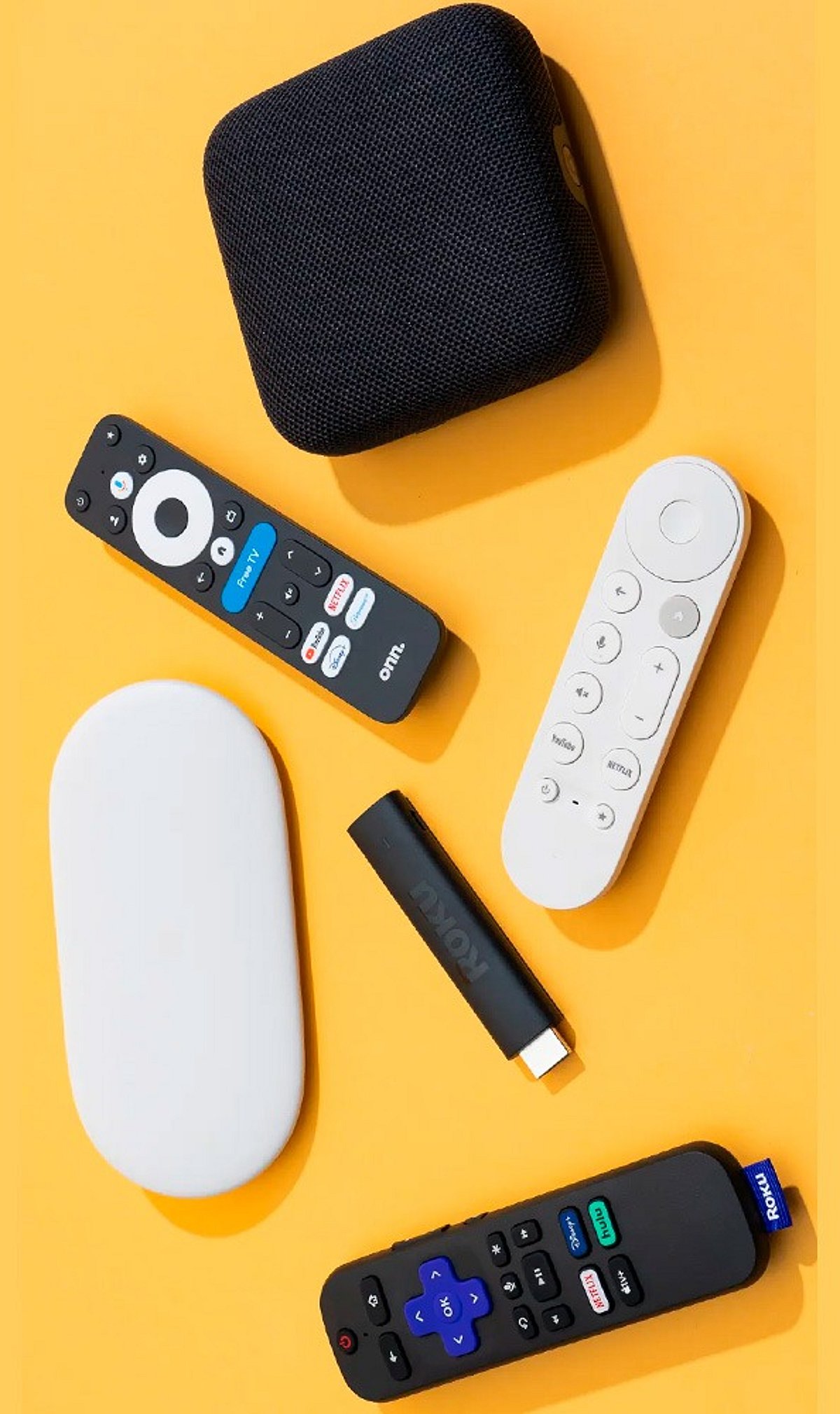
In today’s digital landscape, a smart TV paired with a dedicated streaming device offers an unparalleled gateway to endless entertainment. Whether you’re a movie buff, a series binge-watcher, or someone who simply enjoys the convenience of on-demand content, knowing how to seamlessly connect your streaming gadget is fundamental. This comprehensive guide will walk you through the entire process, from unboxing to enjoying your favorite shows, demystifying the setup for popular devices like the Fire TV Stick, Chromecast, Apple TV, and Roku. We’ll cover everything from the initial physical connections to navigating on-screen prompts, ensuring even first-time users can effortlessly transform their viewing experience. Get ready to unlock a world of streaming possibilities with confidence and ease.
Preparing for connection: gathering your essentials
Before you dive into the exciting world of streaming, a little preparation goes a long way. Having all your necessary components ready will make the setup process smooth and hassle-free. First and foremost, ensure your smart TV is in good working order and powered on. Locate the available HDMI ports on the back or side of your TV; most modern TVs will have several, usually labeled HDMI 1, HDMI 2, etc. These are crucial for connecting your streaming device. You’ll also need a stable Wi-Fi connection with its password handy, as all these devices rely on internet access for content.
Unbox your streaming device — be it a Fire TV Stick, Chromecast, Apple TV, or Roku — and identify all included accessories. This typically includes the streaming stick/box itself, a power adapter (often a USB cable and wall plug), a remote control (for Fire TV, Roku, Apple TV), and sometimes an HDMI extender. Double-check that all components are present according to the device’s packaging. For Chromecast, specifically, make sure you have your smartphone or tablet nearby, as it plays a central role in its setup. Having a clear, organized space around your TV will also prevent tangled wires and make the entire process much more manageable.
The universal connection steps: plugging in and powering up
Once your essentials are gathered, the physical connection is the next logical step. This part of the process is largely similar across all streaming devices, leveraging the universal HDMI standard. Begin by plugging your streaming device directly into an available HDMI port on your smart TV. If space is tight or your device is bulky (like some Fire TV Stick models), use the provided HDMI extender cable to create more room and ensure a secure fit. Next, connect the device to its power source. This usually involves plugging the USB cable into the streaming device and then connecting the other end to the wall adapter, which then goes into a power outlet. While some TVs offer USB ports for power, using the dedicated wall adapter is generally recommended for stable performance, especially for devices like Apple TV or Roku boxes which come with their own dedicated power bricks.
With the device physically connected and powered, turn on your smart TV. Using your TV’s remote, navigate to the input or source menu. This button is often labeled ‘Input’, ‘Source’, or an icon resembling an arrow entering a box. Select the HDMI input where you plugged in your streaming device (e.g., HDMI 1, HDMI 2). Your TV screen should then display the initial boot-up screen of your streaming device, indicating a successful physical connection. If you see a “no signal” message, double-check your HDMI connection and ensure you’ve selected the correct input.
Device-specific setup wizardry: fire tv, roku, and apple tv
After successfully powering up and selecting the correct HDMI input, the on-screen setup wizard will guide you through the device’s specific configuration. For Fire TV Stick, Roku, and Apple TV, the process is quite interactive and primarily uses their respective remote controls. Begin by inserting batteries into your remote and pairing it with the device if prompted – sometimes just pressing a button is enough, other times a specific pairing sequence is required (e.g., holding down certain buttons). You’ll typically be asked to select your preferred language and region.
The next critical step is connecting to your Wi-Fi network. The device will scan for available networks; select yours from the list and enter the password using the on-screen keyboard. Pay close attention to capitalization and special characters. Once connected, the device will often check for and install any available software updates. This can take a few minutes, so be patient. Afterwards, you’ll be prompted to log in to or create an account specific to the device platform (Amazon account for Fire TV, Roku account for Roku, Apple ID for Apple TV). This account is essential for downloading apps and managing your subscriptions. Finally, you’ll likely see options to download popular streaming apps like Netflix, Hulu, Disney+, and more, allowing you to customize your home screen right away. Some devices, like Apple TV, may also offer options for HomeKit integration or sharing settings with nearby Apple devices.
Chromecast’s unique approach: setting up via your mobile device
Chromecast stands apart from other streaming devices due to its unique setup process, which relies heavily on a smartphone or tablet rather than a dedicated remote. Once your Chromecast device is plugged into your TV’s HDMI port and powered on, switch your TV’s input to the correct HDMI channel. You should see a welcome screen displaying the Chromecast name and a URL, typically g.co/cast/setup, along with a four-character code.
Now, grab your smartphone or tablet. Download and open the Google Home app (available for both iOS and Android). Ensure your mobile device is connected to the same Wi-Fi network you intend to use for your Chromecast. Within the Google Home app, it should automatically detect a new Chromecast device nearby. Tap to set it up. The app will guide you through confirming the four-character code displayed on your TV matches the one in the app, selecting your region, and then connecting the Chromecast to your Wi-Fi network. This process seamlessly transfers your Wi-Fi credentials from your phone to the Chromecast. Once configured, you’ll be able to “cast” content from compatible apps on your mobile device (like YouTube, Netflix, Spotify) directly to your TV. The Google Home app also serves as a central hub for managing your Chromecast settings later on.
Troubleshooting and optimizing your new setup
Even with a detailed guide, you might encounter a few snags. Here are some common troubleshooting tips. If you see a “No Signal” message, first ensure your TV is on the correct HDMI input. Try unplugging and re-plugging the HDMI cable at both ends. Sometimes, simply restarting your TV and streaming device (by unplugging from power for 30 seconds) can resolve connectivity issues. For Wi-Fi problems, verify your password, ensure your router is working, and try moving closer to the router if possible. A factory reset of the streaming device, while a last resort, can often fix persistent software glitches.
Once everything is connected and streaming, consider optimizing your experience. Explore your smart TV’s picture and sound settings. Many TVs have preset modes (Cinema, Sport, Game) that can enhance viewing. For your streaming device, delve into its display settings to ensure it’s outputting the correct resolution (e.g., 1080p, 4K) for your TV. Familiarize yourself with the device’s app store to discover new content and organize your apps for quick access. Remember to keep your device’s software updated, as these updates often bring performance improvements, new features, and security enhancements, ensuring a smooth and enjoyable streaming journey for years to come.
Here’s a quick comparison of general setup complexity:
| Device | Setup method | Remote required | Account needed | Typical setup time |
|---|---|---|---|---|
| Fire TV Stick | On-screen wizard, remote | Yes | Amazon account | 5-10 minutes |
| Roku Streaming Stick/Box | On-screen wizard, remote | Yes | Roku account | 5-10 minutes |
| Apple TV | On-screen wizard, remote | Yes | Apple ID | 10-15 minutes |
| Chromecast | Google Home app on mobile | No (mobile acts as remote) | Google account | 5-8 minutes |
Connecting your streaming device to a smart TV is a straightforward process that significantly enhances your home entertainment options. We’ve journeyed through the essential preparatory steps, from ensuring you have all components to understanding the crucial role of HDMI ports and stable Wi-Fi. We then detailed the universal physical connection and power-up sequence, ensuring your device communicates effectively with your TV. The guide further delved into the distinct on-screen setup wizards for Fire TV, Roku, and Apple TV, highlighting account creation and app installation, before addressing Chromecast’s unique mobile-centric configuration. Finally, we equipped you with practical troubleshooting tips and optimization advice to refine your viewing pleasure.
By following these steps, you’re not just connecting a device; you’re opening a portal to a vast library of movies, shows, music, and more, all accessible with ease. The initial setup might seem daunting, but armed with this knowledge, you can confidently navigate each stage, resolve common issues, and personalize your streaming hub. Embrace the convenience and endless possibilities that a properly connected streaming device brings to your smart TV, transforming it into the ultimate entertainment command center.
how to connect streaming device, connect fire tv stick, set up chromecast, connect apple tv to tv, roku setup guide, smart tv streaming setup, streaming device installation, hulu on tv setup, netflix on tv setup, connect streaming stick, tv input selection, wi-fi streaming setup, google home app chromecast, streaming device troubleshooting, media streamer connection